Introduction
Ever found yourself in an Instagram chat where your messages mysteriously disappeared, and you’re scratching your head wondering what just happened? You’re not alone. Instagram Vanish Mode has become one of those features that people either accidentally activate or deliberately use—and then frantically search for how to turn off vanish mode on Instagram.
Here’s the thing: I’ve been there myself. Just last month, I was chatting with a colleague about an important project deadline when I accidentally swiped up and activated Vanish Mode. Suddenly, our entire conversation started disappearing, and I panicked—worried that I’d lose critical information. That’s when I realized how many people probably face this same frustration daily.
In this comprehensive guide, I’ll walk you through everything you need to know about turning off Vanish Mode on Instagram in 2026. Whether you activated it by accident, want to keep a permanent record of your conversations, or simply prefer traditional messaging, I’ve got you covered. We’ll explore what Vanish Mode actually is, why you might want to disable it, and most importantly—how to turn it off using multiple proven methods.
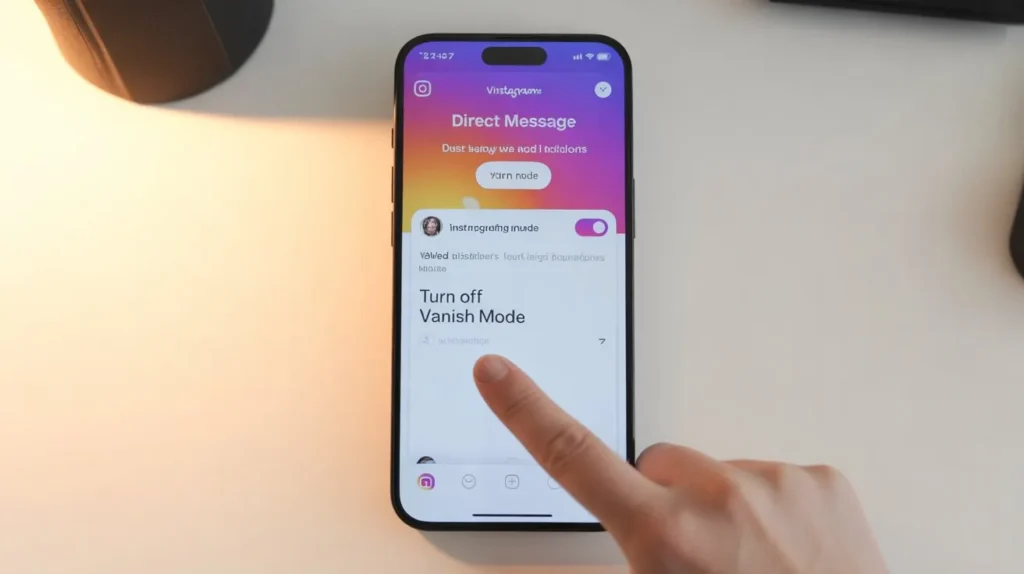
What is Instagram Vanish Mode? (2026 Update)
Instagram Vanish Mode is a privacy-focused feature introduced by Meta Platforms that allows users to send ephemeral messages that automatically disappear after they’re viewed and the chat is closed. Think of it as Instagram’s answer to Snapchat messages or WhatsApp disappearing messages—it’s designed for sharing temporary content that you don’t want lingering in your message history.
How It Works in 2026
As of 2026, Vanish Mode operates seamlessly within the Instagram DM interface. When activated, your chat window transforms with a distinctive shaded background and visual indicators that clearly show you’re in temporary messaging mode. Here’s what happens:
- Messages sent in Vanish Mode disappear after the recipient views them and leaves the conversation
- The feature works on both iOS Instagram and Android Instagram apps
- Screenshot detection automatically alerts both parties if someone captures the conversation
- The mode stays active until you manually disable it by swiping up again or using the toggle
Recent Updates to the Feature
Instagram updates 2026 have brought some refinements to Vanish Mode. The Meta messaging features now include enhanced end-to-end encryption for vanish mode conversations, improved visual cues to prevent accidental activation, and better integration with Instagram’s privacy settings. The platform has also made it clearer when you’re entering or exiting the mode, reducing confusion for users.
Why Would You Want to Disable Vanish Mode on Instagram?
You might be wondering—if disappearing messages are supposed to be a privacy feature, why would anyone want to turn off vanish mode on Instagram? The reality is that this feature isn’t right for every situation. Let me share some compelling reasons why you might want to disable Vanish Mode.
Preference for Permanent Message History
Many of us rely on our conversation history for reference. Whether it’s sharing addresses, making plans, or discussing important details, having a permanent chat record is invaluable. I personally prefer keeping my messages saved because I’ve lost count of how many times I’ve needed to scroll back through old conversations to find a restaurant recommendation or someone’s contact information.
Accidental Activation Issues
This is probably the most common reason people search for how to disable vanish mode. The swipe up gesture that activates Vanish Mode is incredibly easy to trigger accidentally—especially if you’re scrolling through messages quickly or your phone is in your pocket. When vanish mode accidentally activated, it can be frustrating, particularly if you don’t notice right away.
Privacy and Security Concerns
Ironically, while Vanish Mode is designed for privacy, some users have privacy concerns about it. The fact that messages can disappear might make it harder to document harassment, keep records of important agreements, or maintain evidence of conversations. For professional Instagram messaging or business Instagram DMs, having a permanent record is often essential for accountability.
Professional Communication Needs
Speaking of business, if you use Instagram for work or professional networking, ephemeral messaging simply doesn’t cut it. You need reliable message retention for client communications, collaboration details, and project discussions. Disappearing messages can create confusion and make it difficult to maintain professional communication standards.
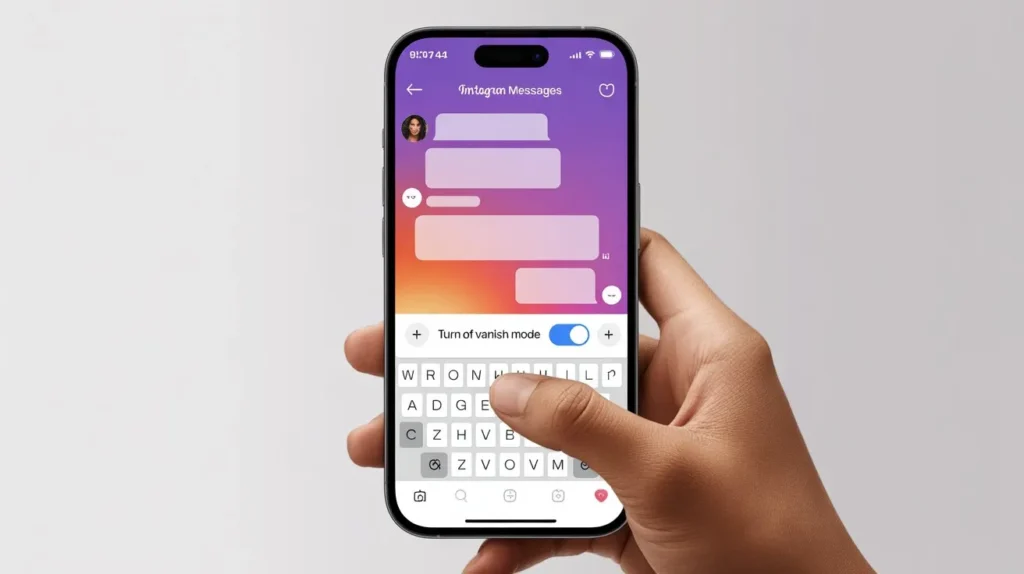
How to Turn Off Vanish Mode on Instagram: Step-by-Step Guide
Ready to exit vanish mode and get back to normal messaging? Here’s your complete, foolproof guide to turning off Vanish Mode on Instagram in 2026. I’ll cover multiple methods so you can choose what works best for your situation.
Prerequisites
Before we dive in, make sure you have:
- The latest Instagram version installed (check your app store for updates)
- An active Instagram account with DM permissions enabled
- Access to the specific chat where Vanish Mode is activated
Method 1: The Swipe Gesture Method
This is the quickest and most common way to disable Vanish Mode Instagram:
- Open the Instagram app on your smartphone and navigate to your direct messages by tapping the messenger icon
- Open the conversation that’s currently in Vanish Mode (you’ll recognize it by the shaded background and “Vanish Mode” indicator at the top)
- Swipe up from the bottom of the screen—yes, the same gesture you used to activate it
- You’ll feel a slight haptic feedback, and the screen will briefly flash to confirm deactivation
- The chat background returns to normal, and you’ll see a message confirming “You turned off vanish mode”
Method 2: Using the Toggle Button
If the swipe gesture isn’t working for you, there’s an alternative method:
- Open the Vanish Mode conversation
- Look at the top of the screen for a “Vanish Mode” label with a toggle switch or button
- Tap to disable the feature directly
- The mode turns off instantly, and your regular DMs resume
Visual Indicators to Confirm Deactivation
How do you know you’ve successfully turned off vanish mode? Watch for these signs:
- The distinctive shaded lines or dark overlay disappears
- Your message bubbles return to their standard appearance
- A notification appears stating “Vanish mode is off”
- The top of the screen no longer displays “Vanish Mode” indicator
- New messages you send will now be permanently saved in your chat history
How to Know If You’re in Vanish Mode on Instagram
Sometimes you might not even realize you’ve entered Vanish Mode. Here’s how to identify it instantly and avoid confusion about whether your messages are being automatically deleted.
Visual Cues and Indicators
The Instagram Messenger interface provides several clear signals:
- Dark or shaded background: The entire chat takes on a darker, often black appearance
- Animated visual effects: You might notice subtle particle effects or a cosmic-looking background
- “Vanish Mode” label: Displayed prominently at the top of the conversation
- Different message appearance: Text bubbles may look slightly different than in standard messaging
Notification Alerts
When you activate Vanish Mode, Instagram sends a notification to both you and the person you’re chatting with. The alert clearly states “You turned on vanish mode” or “[Name] turned on vanish mode,” ensuring transparency in your private conversations.
Chat Appearance Differences
Beyond the obvious visual changes, there are subtle differences in how the chat window functions:
- Messages have a more temporary, lightweight feel
- Read receipts still appear but messages disappear after viewing
- The message thread doesn’t scroll as far back since messages are automatically removed
- Screenshot alerts become active, notifying both parties of any captures
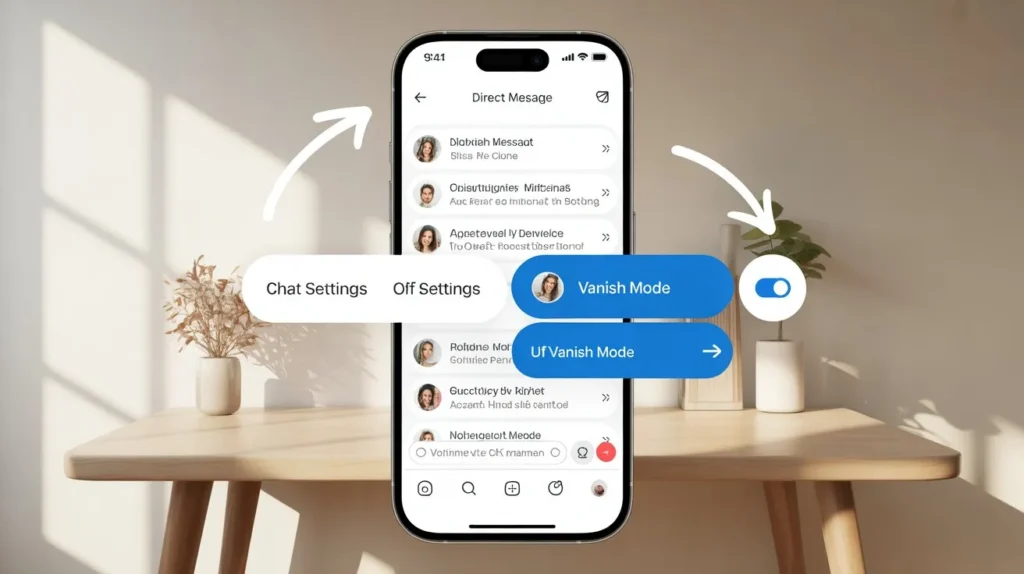
Can You Turn Off Vanish Mode for All Chats Permanently?
This is one of the most frequently asked questions I receive: “Can I just disable temporary messages across my entire Instagram account?” Let’s address this head-on.
Current Limitations in 2026
As of 2026, Instagram doesn’t offer a global setting to permanently disable vanish mode across all conversations. This is an intentional design choice by Meta Platforms to keep the feature flexible and user-controlled on a per-chat basis.
Per-Chat Basis Explanation
Vanish Mode works independently in each conversation. This means:
- You must turn off vanish mode individually in each chat where it’s active
- One conversation can be in Vanish Mode while others remain in regular chat mode
- The setting doesn’t automatically apply to new conversations
- Each chat maintains its own message retention settings
Settings and Preferences Options
While you can’t disable it globally, you can take these preventative measures:
- Be mindful of the swipe up gesture to prevent accidental activation
- Regularly check your active conversations for the Vanish Mode indicator
- Consider using Instagram’s privacy controls to manage who can message you
- Enable app notifications to alert you when Vanish Mode is activated
Wouldn’t it be nice if Instagram added a “Never Allow Vanish Mode” setting? Many users think so, and perhaps future Instagram updates will include this option based on user feedback.
Vanish Mode vs Regular Instagram DMs: Key Differences
Understanding the fundamental differences between Vanish Mode and permanent messages can help you make informed decisions about when to use each option.
Message Retention Comparison
| Feature | Vanish Mode | Regular DMs |
|---|---|---|
| Message lifespan | Disappear after viewing | Permanent until manually deleted |
| Chat history | Not saved | Full history retained |
| Message recovery | Impossible once disappeared | Always accessible |
| Archive capability | Not available | Can archive conversations |
Privacy Features Comparison
Vanish Mode offers enhanced privacy through:
- Automatic message deletion after viewing
- Screenshot detection and alerts
- Ephemeral content that leaves no trace
- Temporary nature prevents long-term data storage
Regular Instagram DMs provide:
- Complete conversation history for reference
- Ability to search past messages
- Option to manually delete specific messages
- Message thread continuity over time
Use Case Scenarios
When should you use Vanish Mode?
- Sharing sensitive information you don’t want recorded
- Casual, spontaneous conversations that don’t need preservation
- Discussing time-sensitive matters that become irrelevant later
- When you want extra privacy assurance
When should you stick with regular DMs?
- Professional Instagram messaging and business communications
- Sharing important details like addresses, phone numbers, or plans
- Collaborative projects requiring reference back to earlier discussions
- Building a documented conversation history
Troubleshooting: What to Do If Vanish Mode Won’t Turn Off
Running into issues when trying to turn off vanish mode on Instagram? Don’t panic—I’ve compiled the most effective solutions to common issues users face in 2026.
Common Issues and Solutions
Problem 1: Swipe gesture not responding
- Solution: Try swiping more deliberately and slowly from the very bottom of the screen
- Make sure you’re swiping upward, not to the sides
- Remove any screen protector that might interfere with touch sensitivity
Problem 2: Toggle button not appearing
- Solution: Update your Instagram app to the latest version
- Force close and restart the application
- Check your internet connection—sometimes features don’t load properly on poor connections
Problem 3: Mode reactivates immediately after turning off
- Solution: This might indicate an app glitch—try the cache clearing steps below
- Ensure you’re not accidentally triggering the gesture repeatedly
App Update Requirements
Instagram version compatibility is crucial for proper feature functionality. Here’s what to do:
- Open your device’s app store (Apple App Store for iOS or Google Play Store for Android)
- Search for “Instagram” or go to your installed apps
- If an update is available, tap “Update”
- Wait for the update to complete and restart Instagram
- Try turning off Vanish Mode again
Keeping your Instagram app updated ensures you have the latest bug fixes and feature improvements from Meta.
Cache Clearing Steps
Sometimes accumulated cache data causes technical problems. Here’s how to clear cache:
For Android Instagram:
- Go to Settings > Apps > Instagram
- Tap “Storage”
- Select “Clear Cache” (not “Clear Data”—that would log you out)
- Restart the app
For iOS Instagram:
- Unfortunately, iOS doesn’t offer direct cache clearing
- Instead, try reinstalling the app (see next section)
- Or go to Settings > General > iPhone Storage > Instagram > Offload App
Reinstallation Guide
If all else fails, a fresh installation often resolves persistent issues:
- Uninstall Instagram from your device
- Restart your phone completely
- Reinstall Instagram from your app store
- Log back into your account
- Navigate to the problematic conversation
- Try disabling Vanish Mode using the methods above
This troubleshooting approach has worked for countless users experiencing vanish mode won’t turn off issues.
Privacy and Security Tips for Instagram Vanish Mode in 2026
Whether you choose to use Vanish Mode or stick with traditional messaging, understanding the privacy features and security implications is essential for safe Instagram usage in 2026.
Screenshot Notifications
One of the most important security features of Vanish Mode is screenshot detection. Here’s what you need to know:
- Instagram immediately sends a notification to both participants when someone takes a screenshot
- The screenshot alert includes who took the screenshot and when
- This applies to screen recordings as well, not just static screenshots
- However, be aware that third-party screen recording apps might bypass detection
Pro tip: Even with screenshot notifications, never share anything in Vanish Mode that you’d be devastated if it were captured and shared. Technology isn’t foolproof.
Best Practices for Sensitive Information
I learned this lesson the hard way: Vanish Mode isn’t a security blanket for sharing highly confidential information. Here are my recommendations:
- Don’t share: Financial information, passwords, Social Security numbers, or other critical data
- Be cautious with: Personal addresses, intimate photos, or legally sensitive discussions
- Remember: The person on the other end can still photograph their screen with another device
- Consider alternatives: For truly sensitive information, use encrypted messaging apps like Signal or secure email
Understanding Message Disappearance Timing
When exactly do messages disappear? The timing is important:
- Messages remain visible while both parties are actively in the chat
- Once you exit the conversation (close the chat), messages disappear
- The message duration depends on engagement—messages don’t have a fixed timer
- Both parties must leave the conversation for complete message deletion
- Immediate deletion doesn’t occur until these conditions are met
Third-Party App Risks
Here’s something many users don’t consider: third-party apps claiming to save Vanish Mode messages or bypass Instagram’s privacy controls pose significant risks:
- They often violate Instagram’s Terms of Service
- Using them could result in account suspension
- They may contain malware or steal your login credentials
- They compromise the secure communication that Vanish Mode provides
- Meta actively works to block these applications
My advice? Stick with official Instagram features and app permissions rather than risking your account and data security with unauthorized tools.
Conclusion
Navigating Instagram’s messaging features doesn’t have to be complicated. By now, you should feel confident about how to turn off vanish mode on Instagram whenever you need to restore normal Instagram chat functionality. Whether you accidentally activated it with an errant swipe gesture or deliberately turned it on and now want to switch back, the methods I’ve shared will get you back to permanent messages in seconds.
Remember these key takeaways:
- Vanish Mode is a per-chat feature that creates disappearing messages for enhanced privacy
- You can turn it off using either the swipe up gesture or the toggle button at the top of the chat
- The feature can’t be permanently disabled across all conversations—it operates independently in each chat
- Visual indicators like the shaded background clearly show when you’re in Vanish Mode
- Always keep your Instagram app updated to avoid technical glitches
The beauty of Instagram DM settings is their flexibility. You have complete control over message retention and can switch between ephemeral messaging and standard messaging based on each conversation’s needs. Whether you’re managing business Instagram DMs that require documentation or having casual chats with friends, understanding these Instagram chat controls empowers you to communicate on your own terms.
If you found this guide helpful, consider sharing it with friends who might be struggling with the same issue. And remember—Instagram’s privacy settings are designed to give you control, so don’t hesitate to customize your messaging experience to fit your preferences.
Frequently Asked Questions (FAQs)
How do I turn off vanish mode on Instagram if swiping up doesn’t work?
If the swipe gesture isn’t responding, try these alternative solutions: First, look for the “Vanish Mode” toggle button at the top of your conversation and tap it to disable the feature. If that doesn’t appear, force close the Instagram app completely and reopen it. You can also try updating your Instagram app to the latest version, as outdated versions sometimes have gesture recognition issues. Finally, clearing your app cache (Settings > Apps > Instagram > Storage > Clear Cache on Android) often resolves unresponsive controls. If none of these work, reinstalling Instagram typically fixes persistent problems.
Does the other person know when I turn off vanish mode on Instagram?
Yes, Instagram sends a notification to both participants when Vanish Mode is turned on or off. When you disable Vanish Mode, the other person will see a message in the conversation stating “You turned off vanish mode” or “[Your name] turned off vanish mode.” This transparency is intentional—Instagram wants both parties to always be aware of the message retention status of their conversation. There’s no way to turn off vanish mode secretly without the other person knowing.
Can I recover messages sent in vanish mode after turning it off?
Unfortunately, no. Once messages disappear in Vanish Mode, they’re permanently deleted and cannot be recovered—even if you turn off the feature afterward. The ephemeral nature of these messages means they’re removed from Instagram’s servers and your device completely. This is by design to ensure privacy. If you need to preserve important information shared in Vanish Mode, your only option is to screenshot it before leaving the conversation (though both parties will be notified of the screenshot). For important conversations, it’s better to use regular Instagram DMs instead.
Is vanish mode automatically enabled on Instagram?
No, Vanish Mode is never automatically enabled by Instagram. It only activates when someone in the conversation deliberately uses the swipe up gesture or taps the toggle button. However, it’s very easy to accidentally activate through an unintentional swipe, which is why many users think it turned on by itself. If you notice your chat has suddenly entered Vanish Mode, either you or the person you’re messaging triggered it—possibly without realizing it. Instagram always notifies both parties when the mode is activated, so check your conversation for that notification to confirm who initiated it.
How do I disable vanish mode on Instagram for iPhone vs Android?
The process to turn off Vanish Mode is identical for both iOS Instagram and Android Instagram users. Both platforms use the same methods: swipe up from the bottom of the conversation, or tap the toggle at the top of the screen. The visual indicators are also consistent across devices—both show the shaded background and “Vanish Mode” label. However, cache clearing differs: Android users can clear cache through Settings > Apps > Instagram > Storage, while iPhone users need to either offload the app (Settings > General > iPhone Storage > Instagram) or reinstall it completely. Both platforms require the latest Instagram version for optimal performance.
What happens to screenshots taken in vanish mode after I turn it off?
Screenshots captured during Vanish Mode remain permanently on the device of whoever took them, even after turning off vanish mode. The screenshot notification that was sent to both parties when the screenshot was taken also remains in the conversation history as evidence it occurred. Turning off Vanish Mode doesn’t delete or affect screenshots that were already captured—it only changes the message retention setting for future messages. This is why you should always be cautious about what you share in Vanish Mode, even with the screenshot detection feature active. Anyone can photograph their screen with another device without triggering notifications.
Can I block someone from using vanish mode with me on Instagram?
Unfortunately, Instagram doesn’t currently offer a setting to block Vanish Mode from being used in your conversations. Either participant can activate it at any time in a direct message thread. However, you have a few options: You can immediately turn it off when the other person activates it (you’ll both see it’s off). You can also communicate your preference to the person you’re messaging and ask them not to use it. If someone repeatedly activates Vanish Mode against your wishes in a way that makes you uncomfortable, you might consider limiting your conversations with them or using Instagram’s blocking features to prevent them from messaging you entirely. Hopefully, future Instagram updates will add more granular privacy controls for this feature.